
Installation Guide
If you can't find your device, don't be concerned. We Support All the devices and all the apps. We will provide assistance to you. Simply reach out to us.
Search your TV for one of the following APPs:
- IBO Player (highly recommended/very easy to install)
- IPTV Smarters Pro (choose Xtream Codes API) (highly recommended/very easy to set up)
- DUPLEX game
- Flix IPTV
- SET IPTV
- ELK Players
- Nanomide
- Smart IPV (not really recommended)
- Smart STB (not really recommended)
- STB Emu (Not really recommended)
Once you have installed one of these recommended APPs, you can log in using the login information you received from us.
If you have any problems, please contact our support team via WhatsApp or live chat and they will help you set up the subscription in your APP.
- Go to Play Store and search for any of the APPs recommended below:
- IBO Player (highly recommended/very easy to install)
- IPTV Smarters Pro (choose Xtream Codes API) (highly recommended/very easy to set up)
- DUPLEX play
- Flix IPTV
- SET IPTV
- ELK Players
- Nanomide
- Smart IPV (not really recommended)
- Smart STB (not really recommended)
- STB Emu (Not really recommended)
Once you have installed one of these recommended APPs, you can log in using the credentials we provided.
If you have any problems, please contact our support team via Whatsapp or live chat and they will help you set the subscription in your APP.
Please install one of the IOS apps recommended below:
- IBO Player (highly recommended/very easy to install)
- IPTV Smarters Pro (choose Xtream Codes API) (highly recommended/very easy to set up)
- GSE IPTV (select Xtream Codes API)
- ELK Players
Once you have installed one of these recommended APPs, select Xtream Codes API and you can log in using the subscription information you received from us.
If you have any problems, please contact our support team via WhatsApp or live chat and they will help you set up the subscription in your APP.
Install IPTV on Sony Smart TV using Play Store
Originally Sony Smart TV had the Android TV OS, and they have shifted to the Google TV OS recently. Both TV operating systems have the Google Play Store for installing streaming apps and therefore the installation procedure is also the same.
- Turn on your Sony Smart TV and go to the Apps section.
- Select Play Store and enter the name of the IPTV in the search bar.
- Select the app from the search results and select Install.
- Wait for the installation to complete and open the IPTV app.
- Start streaming the content on your Smart TV.
Install IPTV on Sony Smart TV with Downloader
Most of the IPTV apps are not available on Google Play Store then you can install the app using downloader app.
- Launch your Smart TV and select Apps.
- Open Play Store and click on the search bar.
- Search for Downloader and select the app from the suggestion list.
- Click Install to install the downloader app on your TV.
- Go back to the home screen and select Settings.
- Select Device Settings > Security and Restrictions > Unknown Sources.
- Select the "Downloader" app and check the box to allow you to install apps from unknown sources.
- Launch the downloader app and enter the URL of the IPTV apk in the URL field.
- Click Go and the IPTV will be downloaded to your Smart TV. Select Install.
- Once the installation is complete, open the IPTV app and enjoy streaming the content on your Smart TV.
Install IPTV on Sony Smart TV with USB drive
You can also download the Apk file on your PC and transfer the file to the Smart TV via USB stick for installation.
- Turn on your PC and select the browser.
- In the search bar, enter the name of the IPTV program and lastly an apk. For example: Smart IPTV apk
- Download the IPTV apk file from a trusted website.
- Connect a USB drive to your PC and move the IPTV apk file to the drive.
- Disconnect the USB drive from the PC and connect it to the USB port on the Smart TV.
- On your Smart TV, go to Settings and select Device Preferences.
- Select Security & Restrictions. Click on Unknown Sources and enable it.
- Now move the IPTV apk file to your Smart TV and open the file.
- Click Install and the IPTV app will be installed on your Smart TV.
- Open the IPTV app and start streaming the content.
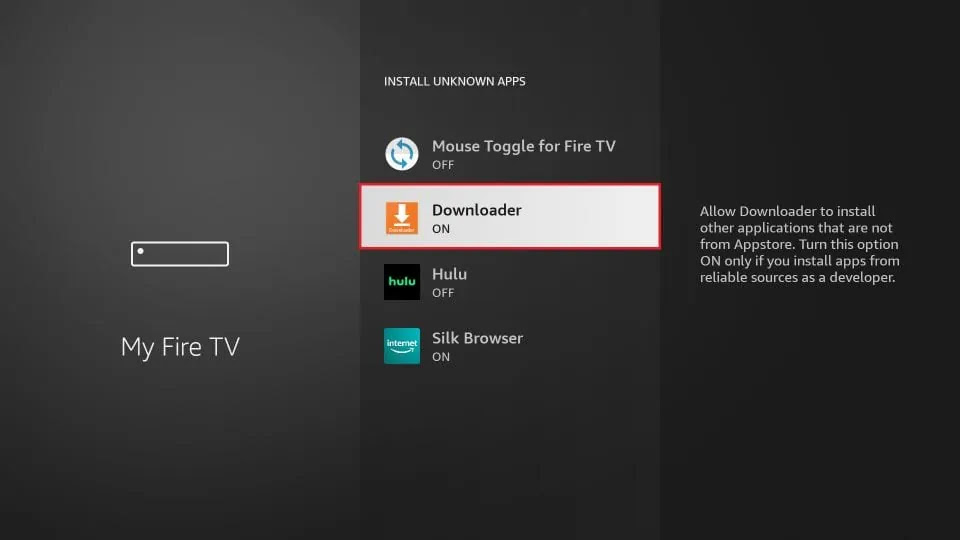
Since we are going to sideload on FireStick, we must first enable the security option "Apps from Unknown Sources" in the FireStick settings.
Step 1: Find & Search
1. You need to be on the home screen of FireStick. Select FIND.
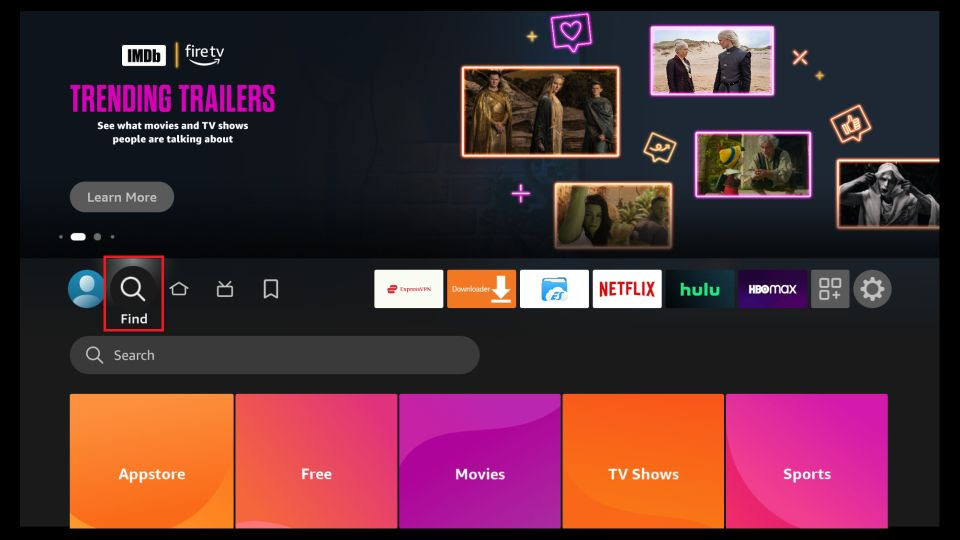
2. Now, click Search
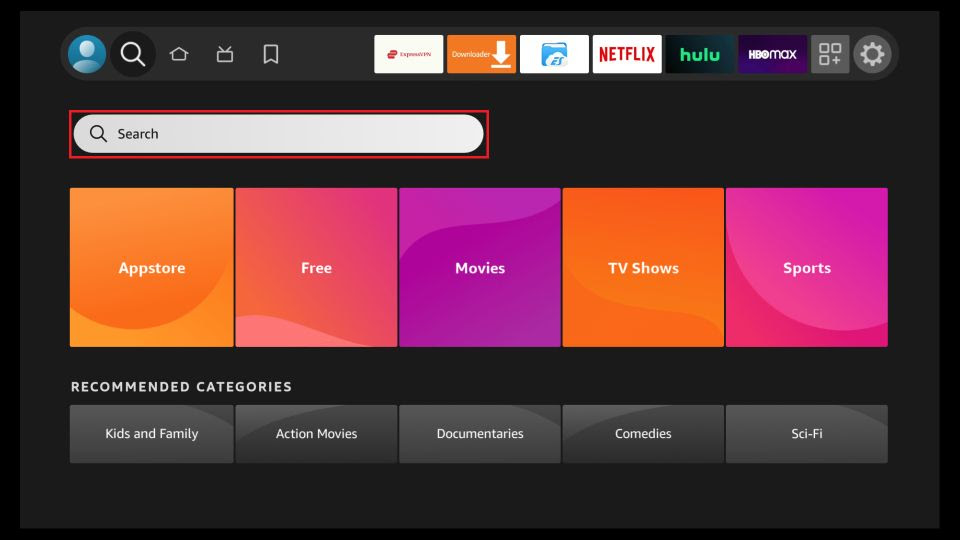
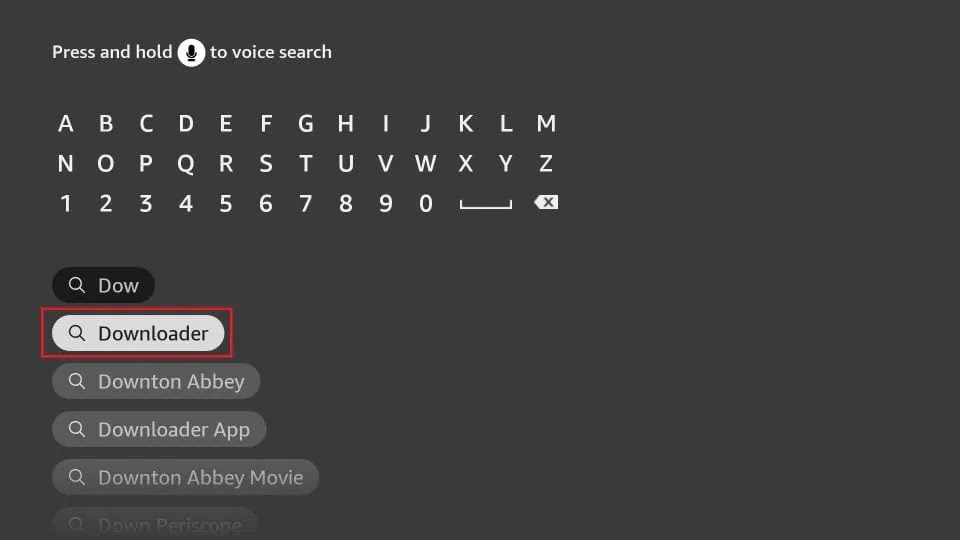
3. In the Search window, search for the app called Downloader. This is the app through which we will sideload IBO PLAYER on FireStick.
Step 2: Enable Developer Options
4. After installing the Downloader app, get back to the home screen and select Settings.
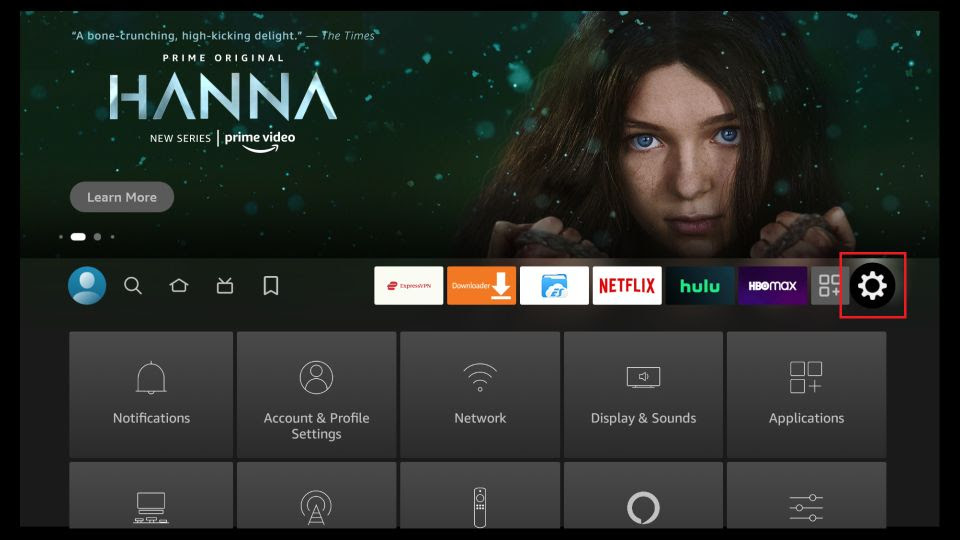
5. Within Settings, go to the option My Fire TV and open it.
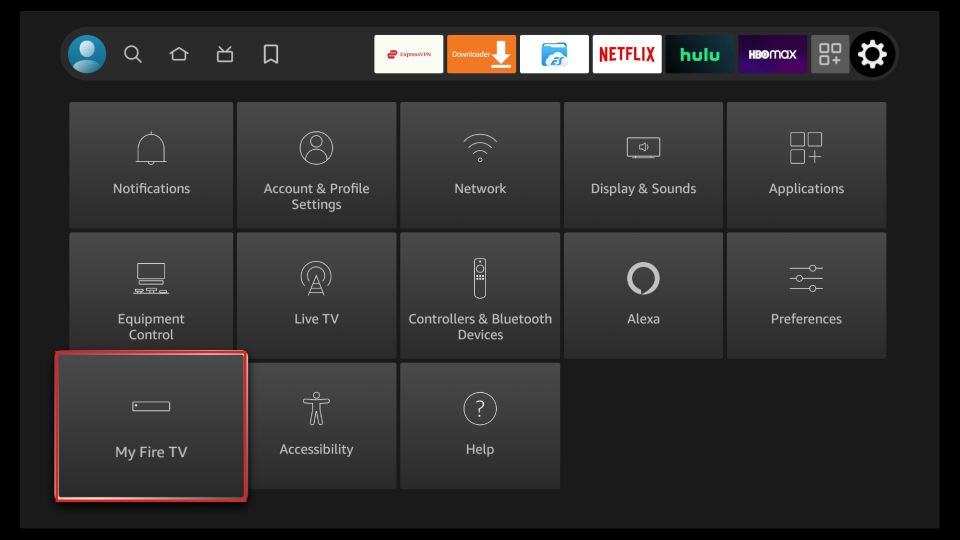
6. Now, the next option you will access is Developer Options. Note: If you do not see Developer Options, go to Settings > My Fire TV > About. Now, select Fire TV Stick and click it 7 times to enable Developer Options.
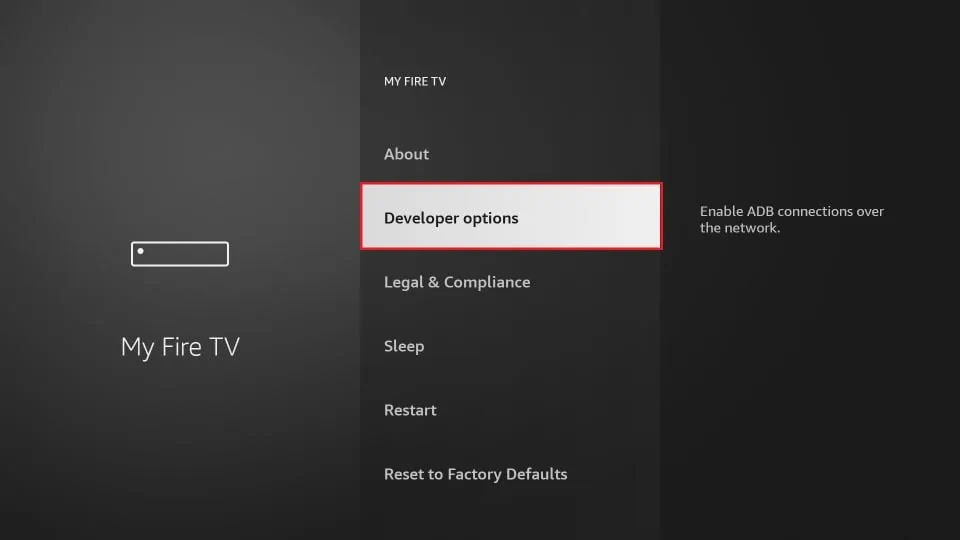
7. On the window that opens next, go ahead and click on Install Unknown Apps. Note: If you still have the older version of the FireStick interface, click Apps from Unknown Sources.
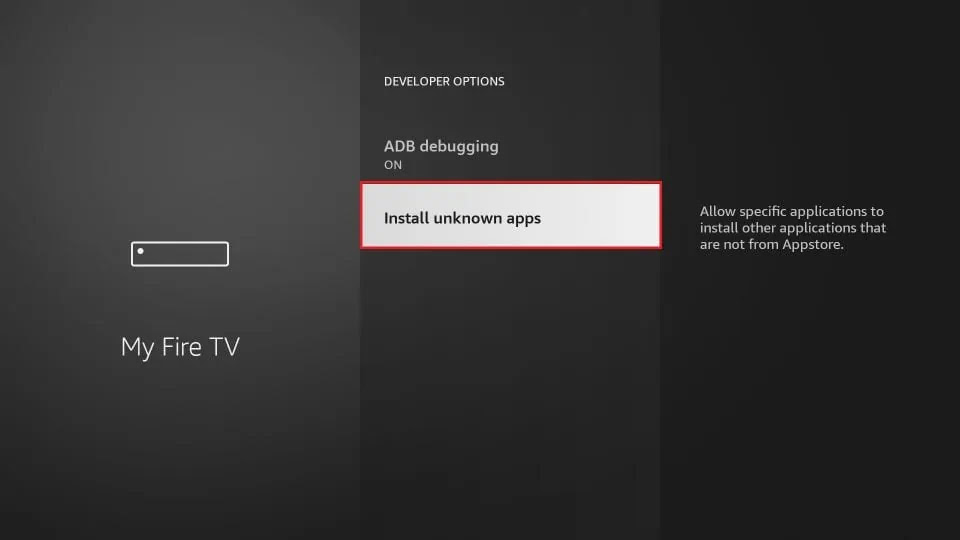
8. Turn the option ON for the Downloader app.
Step 3: Install IBO Player
Once you have enabled Apps from Unknown Sources, you may start installing the IBO Player app on FireStick.
9. You may now open the Downloader app. Some prompts will be displayed when you run it for the first time. Dismiss them by choosing the appropriate options.
10. Now, simply type in the following path/URL on this popup window with the onscreen keyboard: https://shorturl.at/hsMW1 (downloader code 834339) Click OK
11. Wait until the IBO Player APK is downloaded onto your FireStick device. Downloader app will automatically run the IBO Player APK for you. Go ahead and click Install
How to use IBO Pro player app
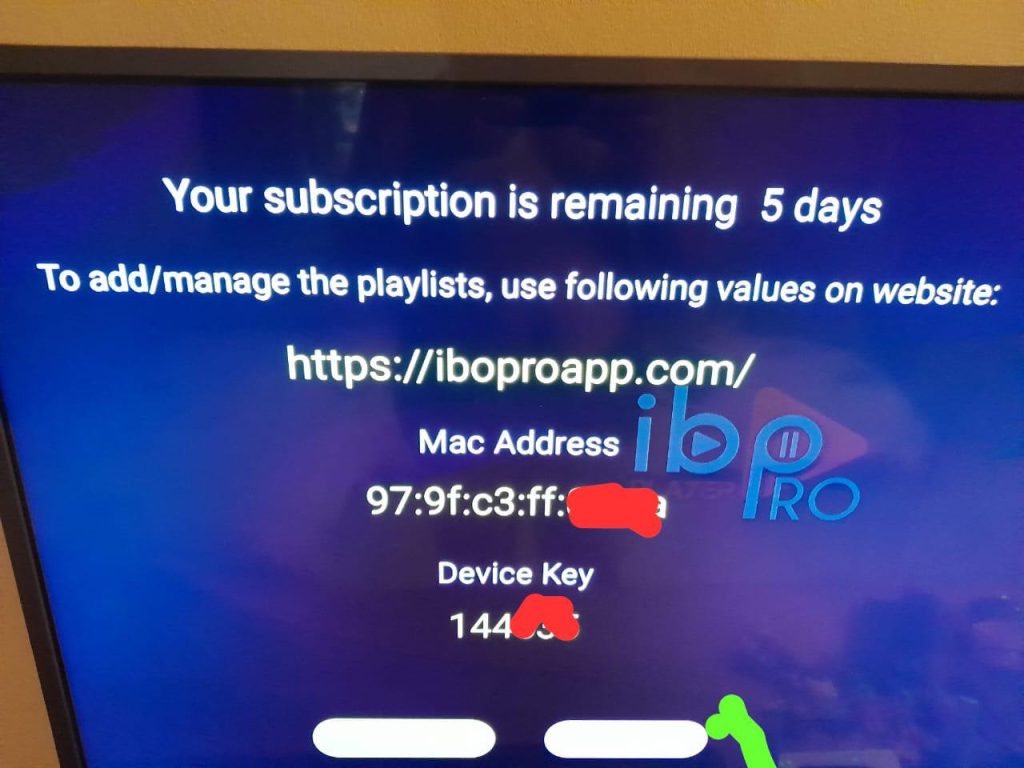
1- Pops Image with Mac Address and device key Show Up. Click Continue:
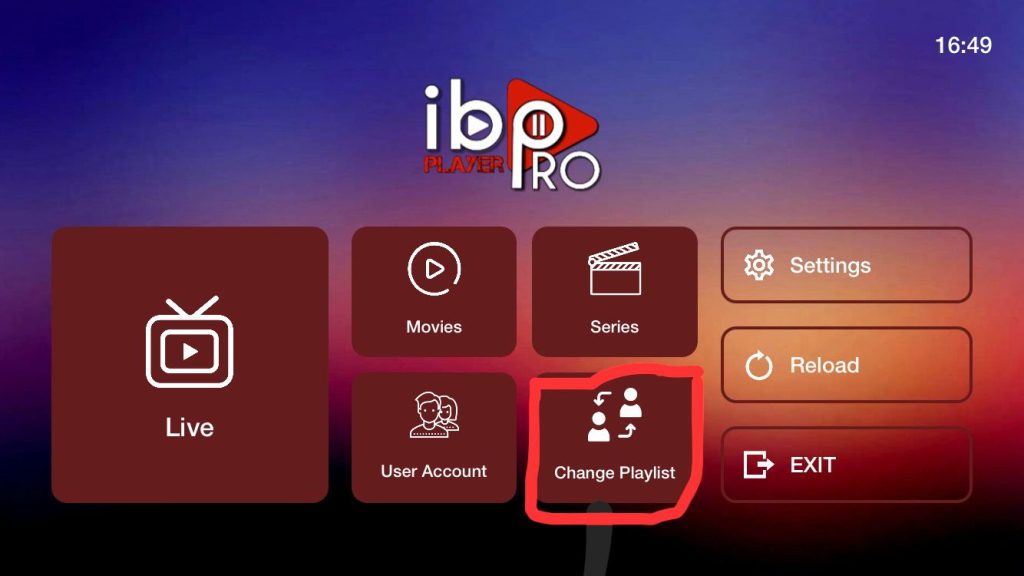
2- App Home page will appear. Click On Change Playlist
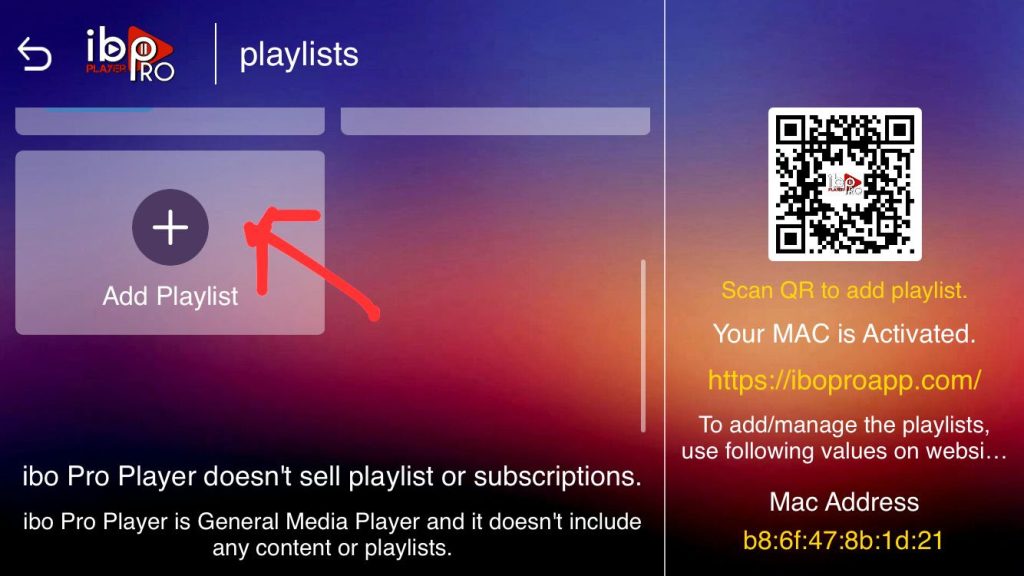
3- Click on Add Playlist
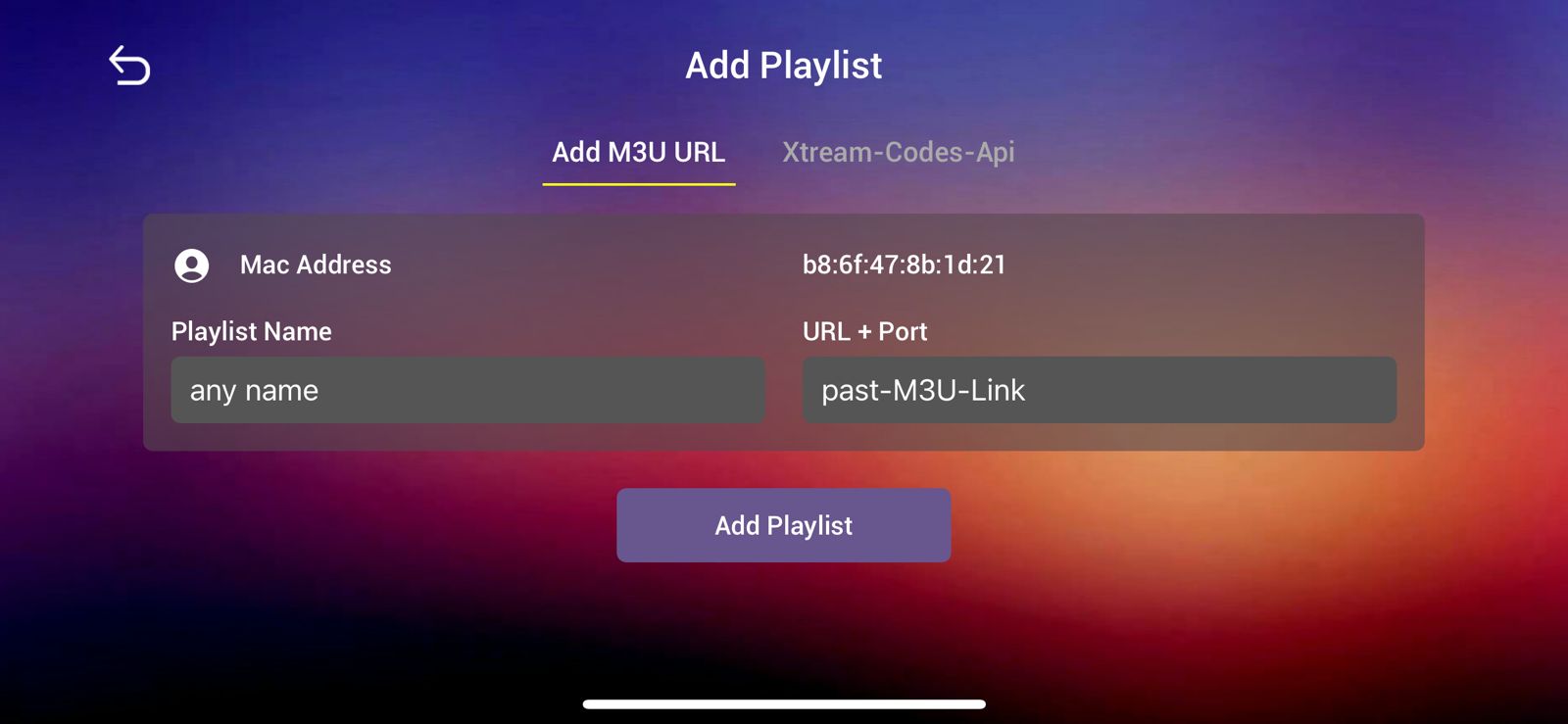
Note: You can add your playlist using one of the two methods explained below.
First: Add your m3u Link, check for info in your email inbox/spam for Subscription Account Login Details
Second: Select tab Xtream-Codes-API and check for info in your email inbox/spam for Subscription Account Login Details
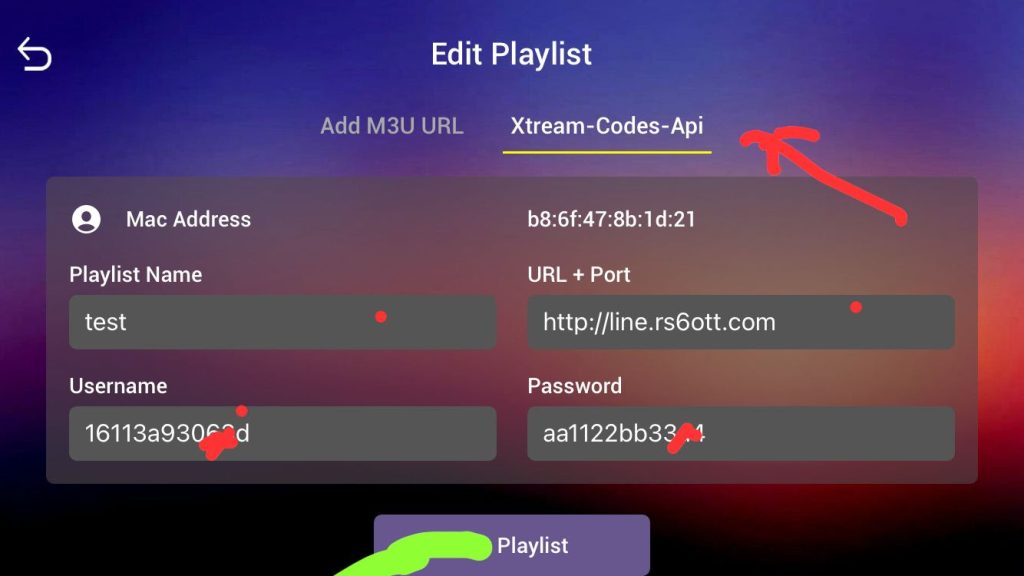
4- Select Add Playlist. Make sure playlist is connected back to Home Page and click Reload
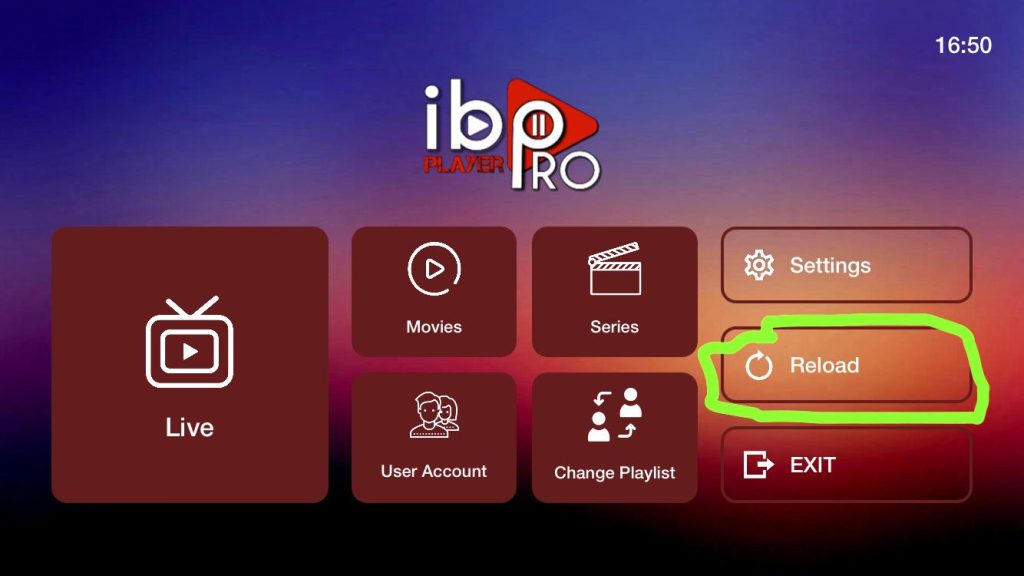
Enjoy your live Movies Series!
- Watch IPTV on your computer and laptop
- IPTV Smarters Pro (Select Xtream Codes API) Download
- Download Kodi IPTV Player
- Download VLC (Download URL https://www.videolan.org/vlc/index.html)
- Open VLC Player
- Go to Media -> Open Network Stream.
- Add the URL of your M3U subscription that we sent you and press play.
- Wait for all channels to load (this may take some time)
- If you have any issues loading M3U, please contact our support team via WhatsApp and they will help you set up the subscription in your VLC.
Choose a channel and enjoy the show
After installing, you may launch the application for use.
First, you are prompted to select your layout.
- If using a streaming device such as Firestick or Android TV/Google TV, select TV and click SAVE.
Choose Login with Xtream Codes API
OR
If your IPTV Provider does not provide Xtream Codes setup, you can use an M3U URL and choose to Load Your Playlist or File URL
Most M3U URLs require that you input your service username and password. You will usually see where these go inside the URL as they are indicated by "username=xxxx" & "password=xxxx". You will input your username and password where the x's are located.
Because these M3U URLs are so long to type, we recommend using Xtream Code if possible.
- Enter account information and click Add User
- Wait for User added successfully message to appear
- You can now access your content for live streaming and more. Enjoy!
While most will use IPTV Smarters Pro on their Firestick or Android TV/Google TV streaming device, there is also an iOS app that users can install directly from the Apple App Store.
After the app installation is complete, we can open the app and authorize an IPTV Service for use.
NOTE: Initializing an IPTV Service within TiviMate requires an M3U URL or Xtream Code. This can usually be found in your service welcome e-mail or by contacting customer support.
The steps below show how to set up the free version with your preferred IPTV Service
- Open the app and click Add Playlist.
- Choose M3U playlist or Xtream Codes.
- Click Enter URL.
- Enter the M3U URL or your preferred IPTV Service.
- Click Next.
- You will then see a Playlist is processed message with Channel count and your Playlist name. Click Next.
- If the EPG URL does not auto-import, you can insert it here. Some IPTV providers offer a separate M3U URL for your EPG. Click Done.
- Choose Your Playlist.
- Click OK.
- TV Guide will import and you are able to start viewing!
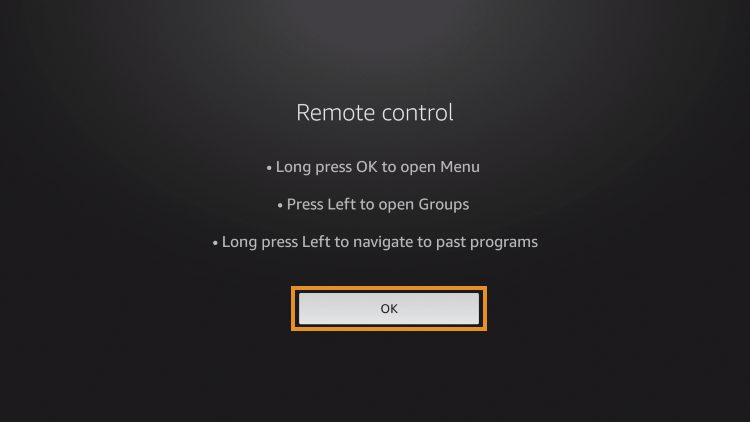
It is important to note that those who choose to use the free app will miss out on tons of fabulous features.
For those who wish to use the free version, simply click Cancel and continue using the app at no charge.
For Microsoft devices (Xbox, Windows PC), you can use the following methods:
- Install IPTV Smarters Pro from Microsoft Store
- Use VLC Media Player (download from videolan.org)
- Use Kodi with PVR IPTV Simple Client addon
- Use MyIPTV Player (available on Microsoft Store)
For Xbox specifically:
- Go to Microsoft Store on your Xbox
- Search for "MyIPTV Player" or "IPTV Smarters"
- Install the app
- Enter your M3U URL or Xtream Codes credentials
- Start watching
If you have any problems, please contact our support team via WhatsApp or live chat.
MAG devices are set-top boxes specifically designed for IPTV streaming.
Setup Steps:
- Connect your MAG device to your TV using HDMI cable
- Connect to internet via Ethernet or WiFi
- Go to Settings -> System Settings
- Select Servers -> Portals
- In Portal 1 URL, enter the portal URL provided by us
- Save settings and restart your device
- Your channels will load automatically
For MAC address activation:
- Find your MAC address (Settings -> Device Info)
- Send the MAC address to us via WhatsApp
- We will activate your device
- Restart your MAG box
STB Emulator allows Android devices to function like MAG boxes.
Setup Instructions:
- Install STB Emulator from Play Store
- Open the app and go to Settings
- Select Profiles
- Create a new profile or edit existing
- Enter the Portal URL provided by us
- Enter your MAC address (must start with 00:1A:79)
- Save and restart the app
Note: For STB Emulator to work, you need to provide us with the MAC address so we can activate it on our servers.
Contact us via WhatsApp with your MAC address for activation.
Setting up IPTV on Roku requires screen mirroring or specific apps.
Method 1: Screen Mirroring
- Enable Screen Mirroring on Roku (Settings -> System -> Screen Mirroring)
- On your Android device, enable screen casting
- Connect to your Roku device
- Open your IPTV app on Android and mirror to Roku
Method 2: Using IPTV Smarters (if available)
- Go to Roku Channel Store
- Search for IPTV Smarters or similar apps
- Install the app
- Enter your Xtream Codes credentials
- Start streaming
For detailed assistance, please contact our support team via WhatsApp.
Formuler devices are premium Android-based IPTV set-top boxes with dedicated IPTV apps.
Setup with MyTVOnline:
- Turn on your Formuler device and connect to internet
- Open MyTVOnline app
- Click "Add Portal" or "Edit Portal"
- Enter a name for your portal
- Enter the Portal URL provided by us
- Save and go back
- Click "Connect" to load channels
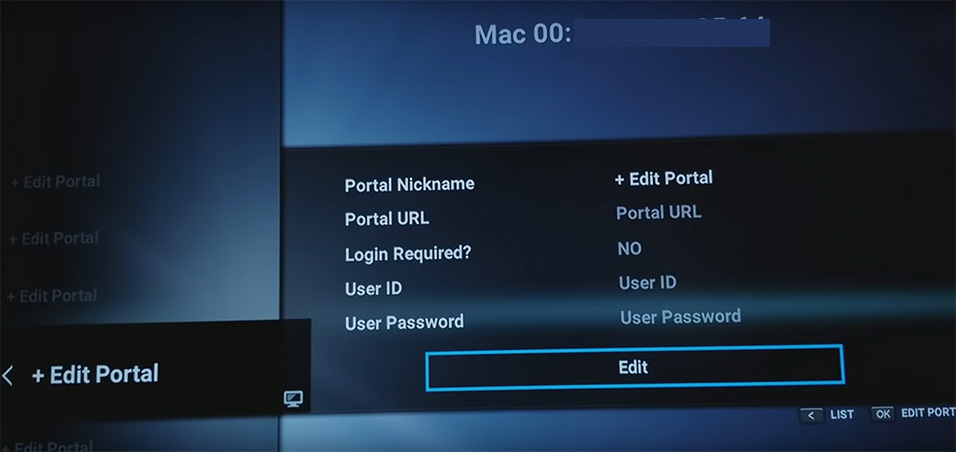
Step by Step with Pictures:
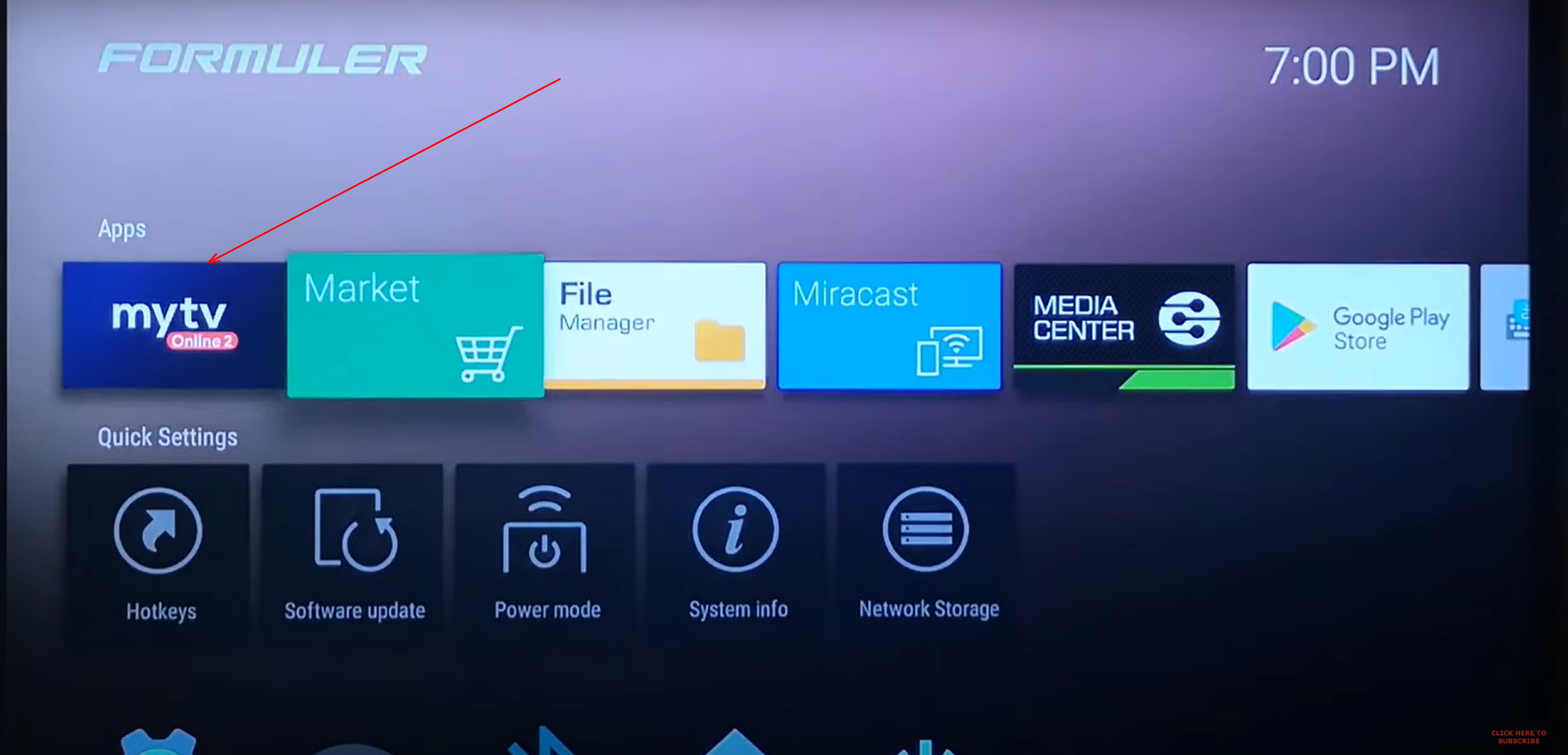
1. Open MyTVOnline app on your Formuler device:
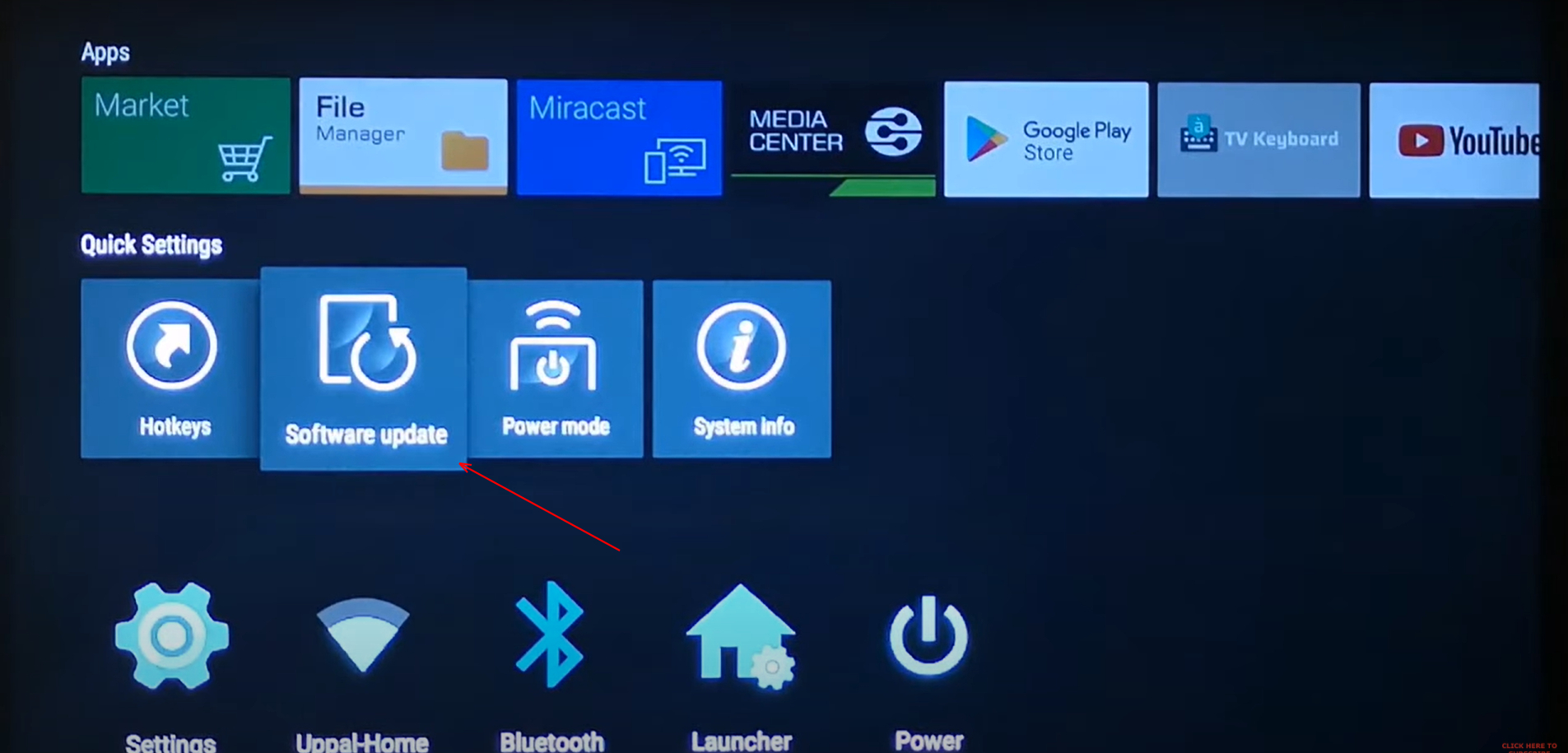
2. Click on "Edit Portal":
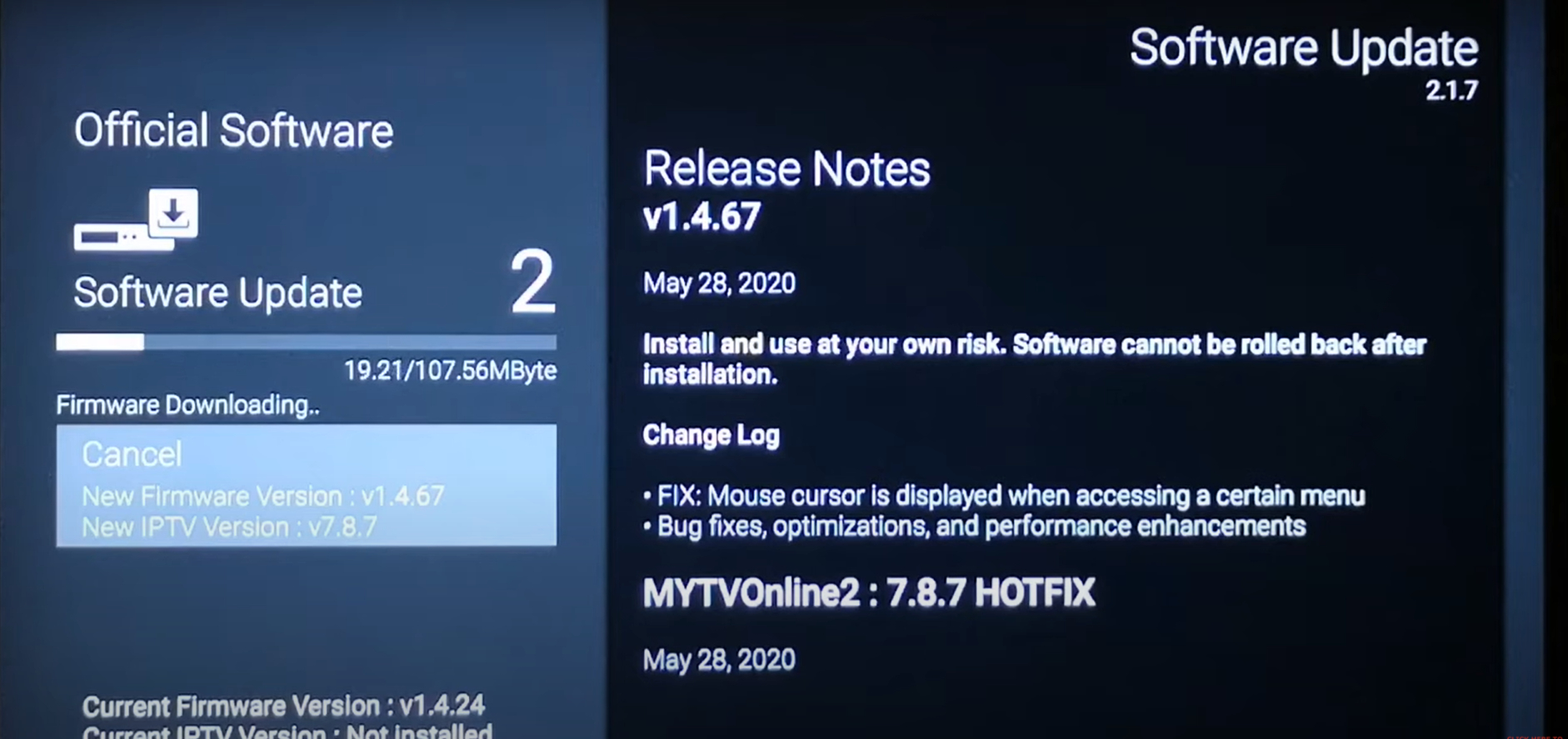
3. Enter Portal Name and Portal URL:
4. Enter your MAC address if required:
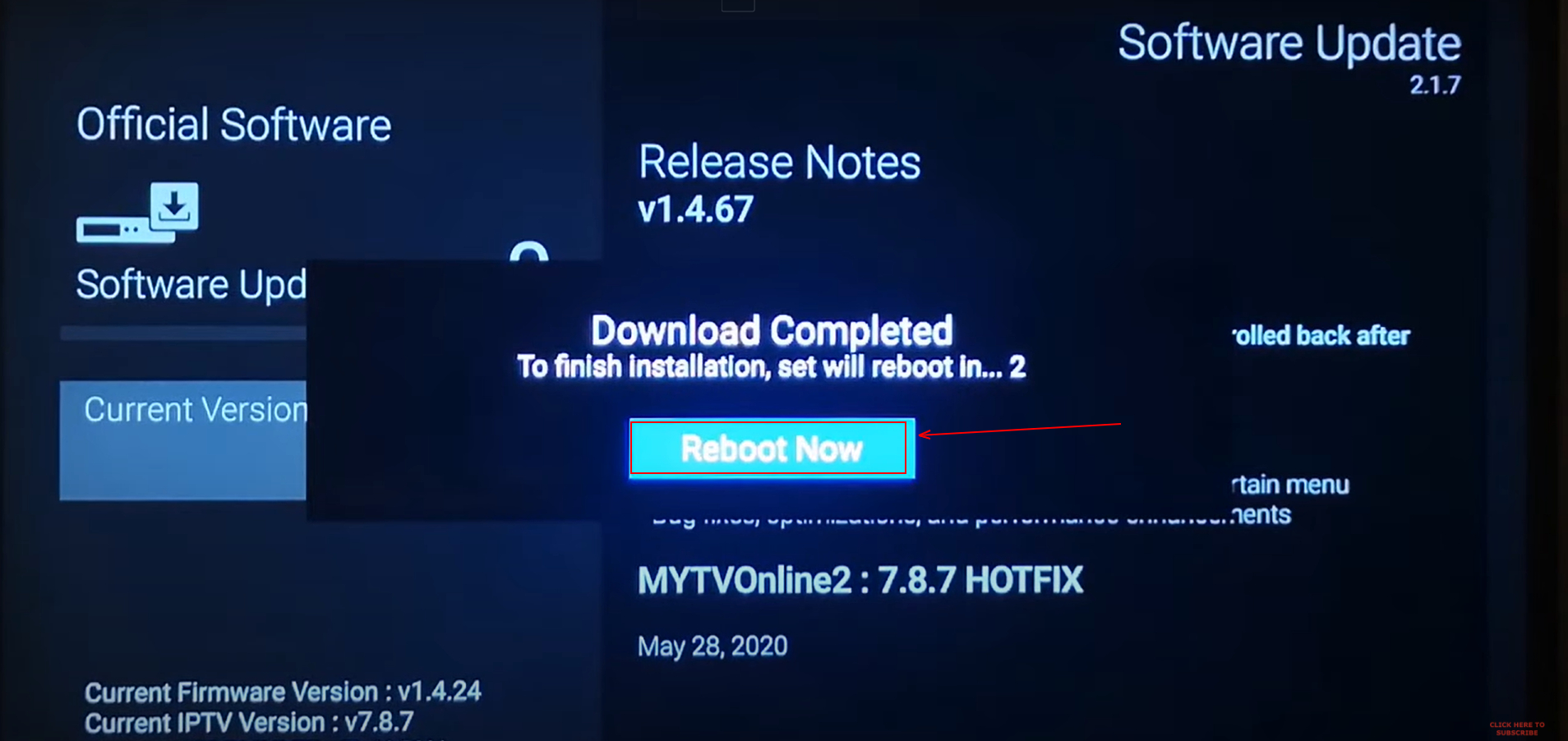
5. Click OK to save:
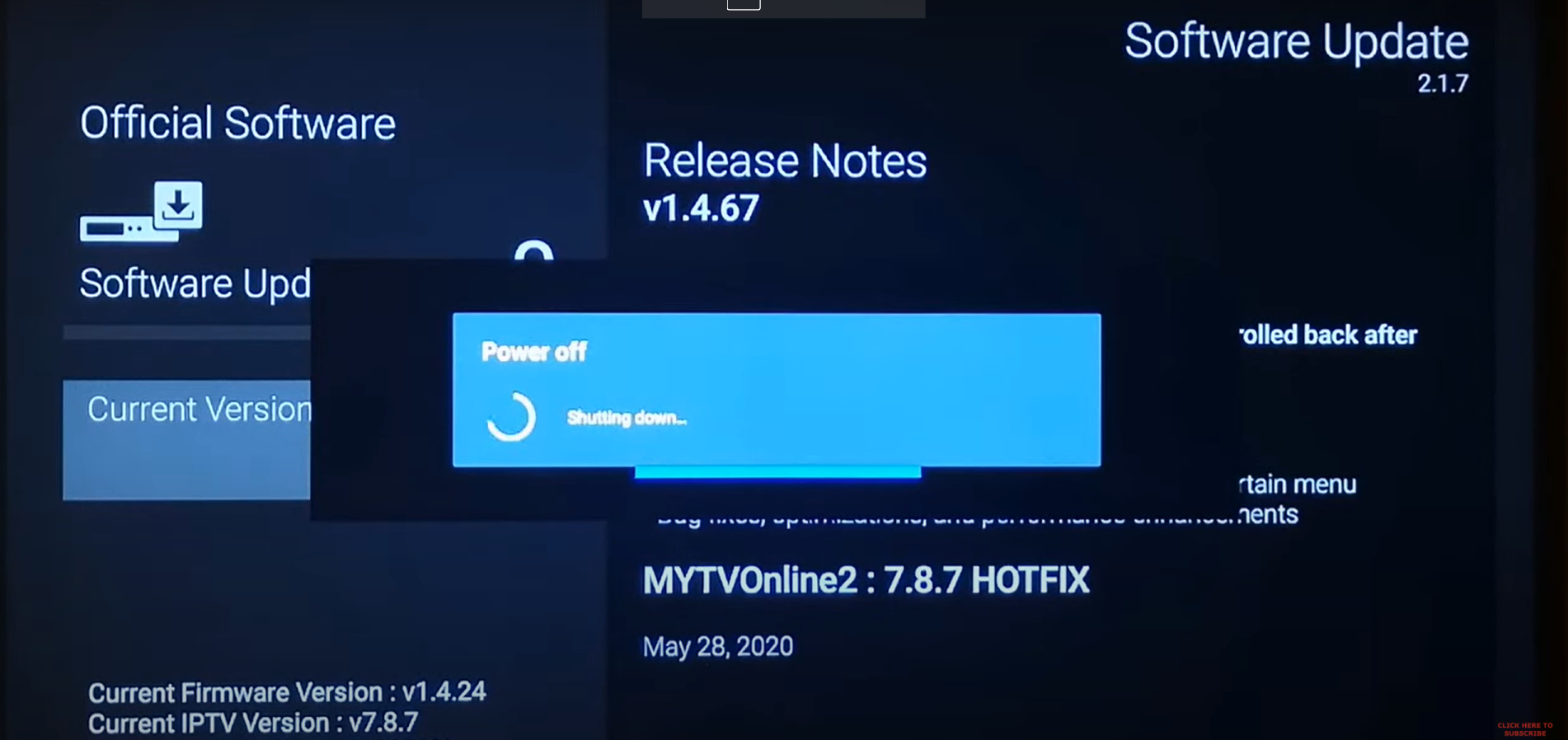
6. Connect and enjoy your channels:
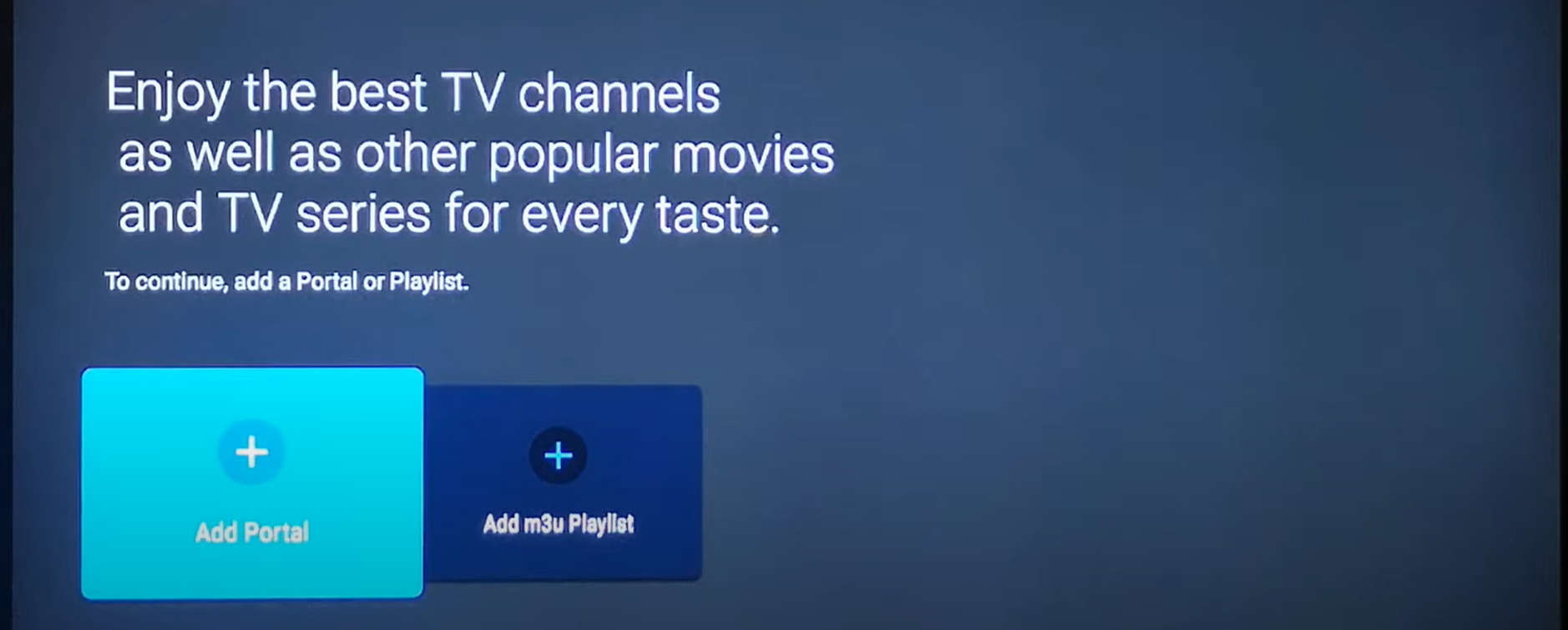
If you encounter any issues, contact our WhatsApp support for immediate assistance.
Enigma 2 is a Linux-based operating system used in many satellite receivers (Dreambox, Vu+, Gigablue, etc.).
Setup Methods:
Method 1: Using Putty (Telnet)
- Download and install Putty on your PC
- Find your Enigma 2 box IP address (Menu -> Information -> Network)
- Open Putty and enter the IP address
- Connection type: Telnet, Port: 23
- Click Open
- Login as root (password is usually empty or "root")
- We will provide you with a command to enter
- Press Enter and wait for installation
- Restart your Enigma 2 box
Method 2: Using Web Interface
- Find your box IP address
- Open browser on PC and enter the IP address
- Login (usually root/root or root/[empty])
- Go to "IPTV" or "Streaming" section
- Upload your M3U file or enter URL
- Save settings
- Restart box
Method 3: USB Installation
- Download the plugin file we provide
- Copy to USB stick
- Insert USB into your Enigma 2 box
- Go to Menu -> Setup -> Software Management -> Install Local Extension
- Select your USB stick
- Install the plugin
- Restart your box
Contact us for the specific setup files and commands for your Enigma 2 device model.